App Timers Are the Guardrails Your Brain Needs
You unlocked your phone to check one notification. Forty-five minutes later you are deep in a feed you do not even care about. That is not a willpower failure. That is a design problem. Every app on your phone was built to keep you scrolling. App timers are how you fight back.
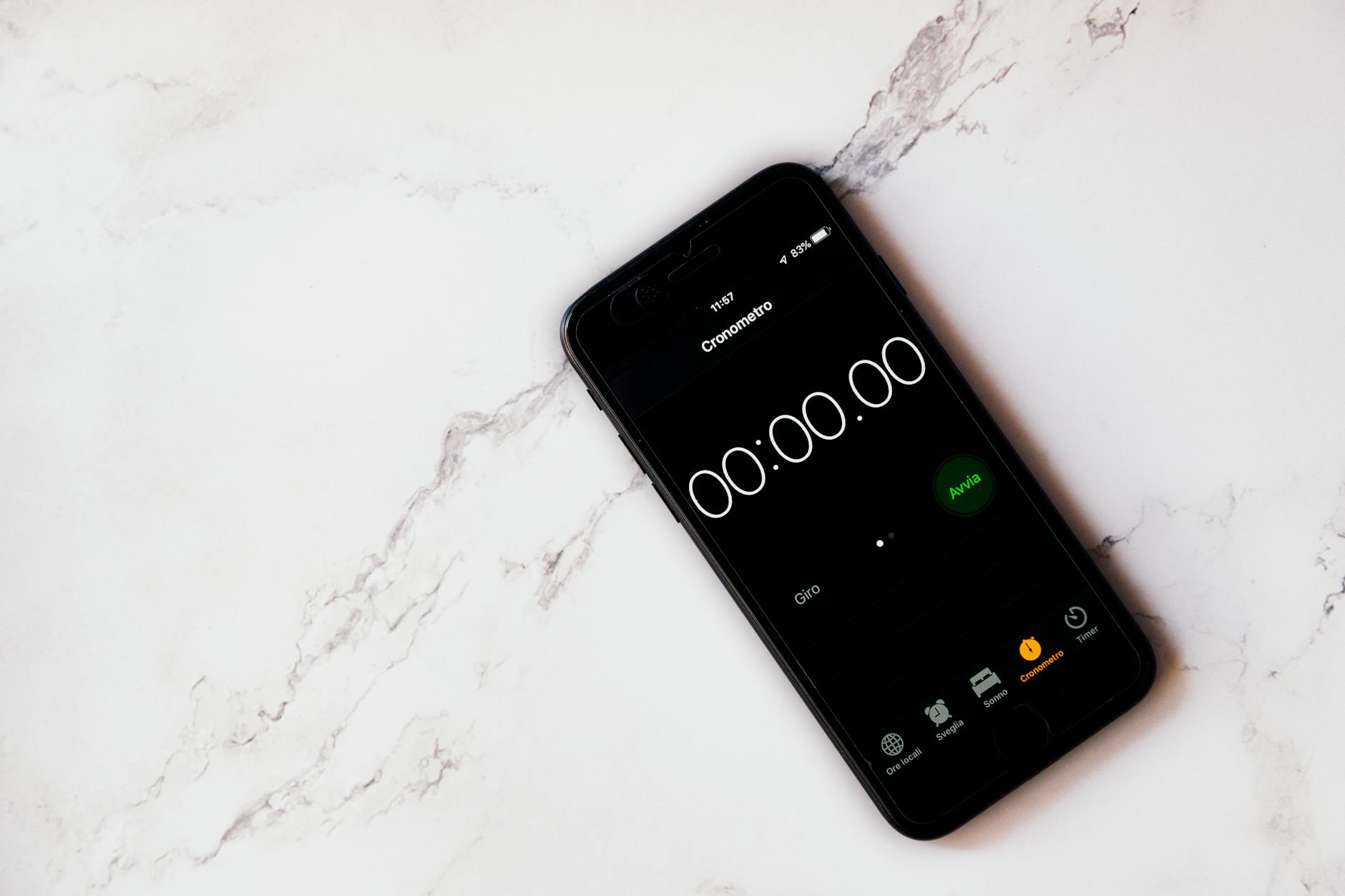
The concept is simple. Set a time limit on an app. When you hit the limit, the app locks or warns you. It is a speed bump between you and mindless consumption. Not a wall -- a nudge. And that nudge is often all it takes to snap you out of autopilot.
Here is how to set them up, which ones actually work, and why most people use them wrong.
Built-In Time Limits on iOS
Apple baked usage limits directly into Screen Time. No download needed.
How to set them up:
- Open Settings and tap Screen Time
- Tap App Limits, then Add Limit
- Choose a category or specific app
- Set your daily time limit
- Tap Add
When you hit your limit, the app grays out and shows a time-limit screen. You can override it with one tap, which is both a feature and a flaw. More on that later.
Pro settings most people miss:
- Set different limits for weekdays versus weekends
- Use Downtime to block everything except essential apps during set hours
- Enable "Block at End of Limit" under Screen Time passcode to make limits harder to bypass
The Screen Time passcode trick is critical. Have someone else set the passcode so you cannot override your own limits. It sounds extreme. It works.
Built-In Usage Limits on Android
Android handles this through Digital Wellbeing.
How to set them up:
- Open Settings and tap Digital Wellbeing
- Tap the app you want to limit on the dashboard
- Tap App Timer
- Set the duration and confirm
When you hit the limit, the app icon grays out until midnight. Android's implementation is slightly stricter than Apple's by default, which is actually a good thing.
Focus Mode is the Android feature that deserves more attention. It lets you pause distracting apps with one tap and set automatic schedules. More useful than individual timers for most people.
Why Built-In Limits Are Not Enough
Here is the truth nobody wants to hear. The built-in usage limits on both platforms are easy to ignore.
On iOS, you tap "Ignore Limit" and keep scrolling. On Android, you can disable the timer in 10 seconds. These tools rely on your willpower at the exact moment your willpower is weakest -- when you are already deep in an app.
That is why third-party solutions exist. They add friction. Real friction.
The Best Third-Party Screen Time Tools
Opal -- Best for iPhone Users
Opal blocks apps at the system level. No easy override. When an app is blocked, you cannot access it without going through a deliberate, multi-step unlock process. The daily focus schedules are customizable, and the analytics show you exactly where your time goes.
One Sec -- Best for Habit Interruption
One Sec does not block apps. Instead, it forces you to take a breath and confirm your intention before opening them. You tap Instagram, a breathing exercise appears, then it asks "Do you still want to open this?" Most of the time, you realize you do not.
This approach is brilliant because it targets the unconscious habit loop rather than creating a hard restriction you resent.
ScreenZen -- Best for Android Users
ScreenZen adds a customizable delay before you can use distracting apps. Set it to 10 seconds, 30 seconds, or a full minute. That forced pause is enough to break the automatic reach-and-scroll pattern.
Focus Timer -- Best for Work Sessions
Sometimes the problem is not limiting bad apps. It is staying focused on the right tasks. FocusTimer flips the script. Instead of restricting distractions, it gives you structured focus sessions where your phone becomes a tool for deep work, not a distraction machine.
When your work sessions have clear start and end times, the urge to check other apps drops dramatically.
How to Set App Timers That Actually Work
Most people set their limits wrong. They go extreme on day one -- 15 minutes for Instagram, 10 minutes for YouTube, zero for TikTok -- and burn out within a week.
Start generous. Then tighten.
Week one: Track your actual usage without limits. Just observe. How much time do you actually spend on each app. The number will shock you.
Week two: Set limits at 75 percent of your current usage. If you spend 2 hours on social media, set the limit to 90 minutes. Noticeable but not painful.
Week three: Drop to 50 percent. Now you are making real changes. Fill the freed-up time with something intentional.
Week four and beyond: Find your sustainable floor. For most people, 30 to 45 minutes total social media per day is the sweet spot where you stay connected without losing hours.
The Bigger Picture Behind Usage Limits
These tools are exactly that -- tools. They are not a solution. The real question is what you do with the time you reclaim.
If you cut two hours of scrolling and replace it with two hours of television, you have not solved anything. You have rearranged the furniture.
The people who get the most out of these limits pair them with intentional alternatives. A home workout instead of morning scrolling. A Pomodoro session instead of mid-afternoon social media. A book instead of bedtime feeds.
Time limits create the space. You decide what fills it.
Common Mistakes With Screen Time Limits
Setting and forgetting. Review your limits monthly. Your habits change. Your limits should too.
Limiting everything. Not all screen time is bad. Reading, learning, creating, communicating -- these are productive uses. Only limit the apps that drain you.
Using timers as punishment. If you resent your own limits, you will disable them. Frame it as choosing how you spend your time, not restricting yourself.
Ignoring the root cause. If you reach for your phone every time you feel bored, anxious, or lonely, a timer helps but does not fix the underlying pattern. Notice the trigger. That awareness matters more than any app setting.
Set your first timer today. Pick the one app that steals the most time. Give yourself a generous limit. See what happens when you create even a small speed bump between you and the scroll.
-- Dolce
Comments
Comments powered by Giscus. Sign in with GitHub to comment.