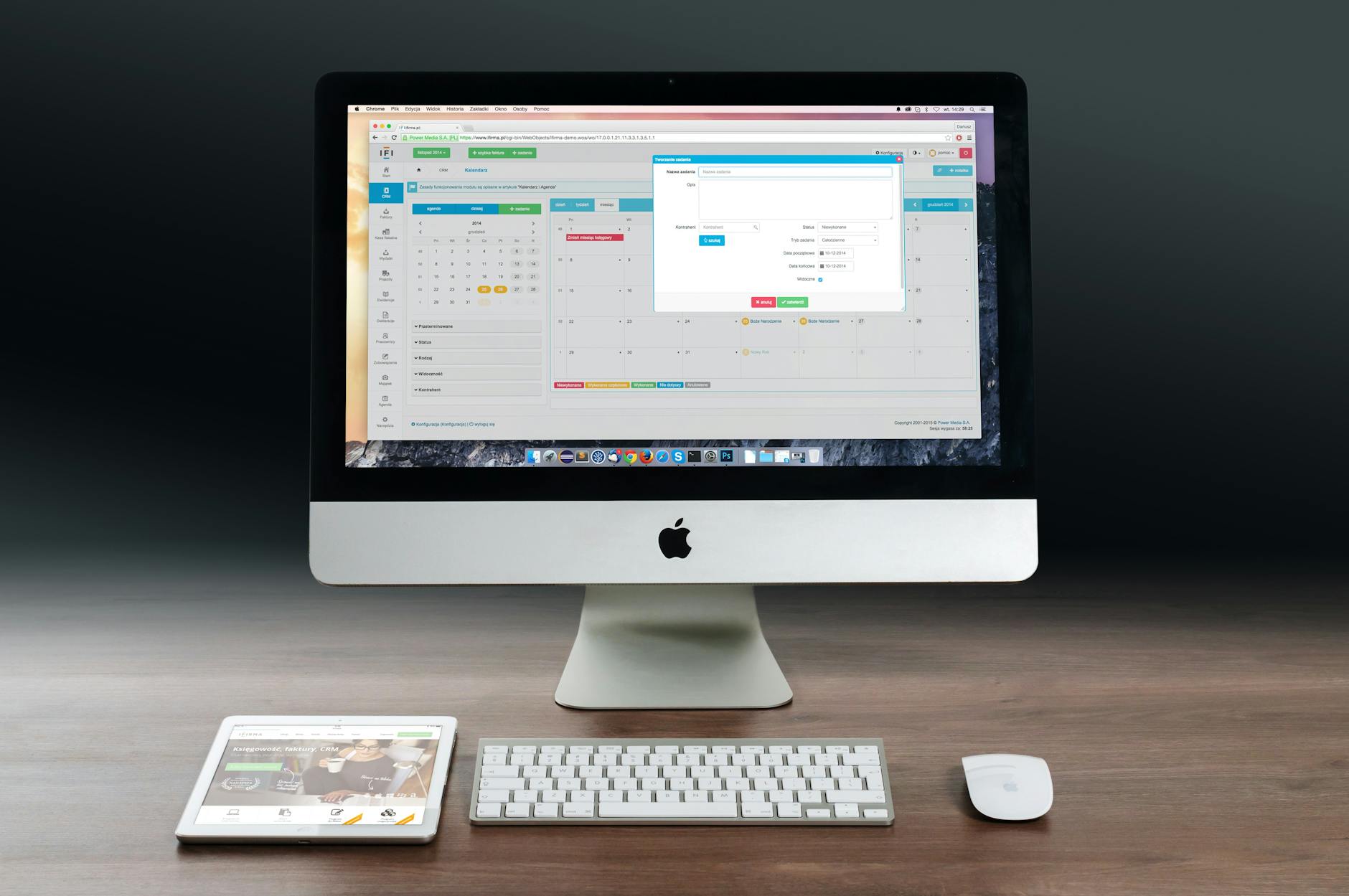
Mac Window Management Is Broken by Default
I switched from Windows to Mac in 2019 and immediately wanted to throw the laptop out a window. Not because macOS was bad. Because there was no way to snap windows to the sides of my screen. Something Windows had done for a decade. I was dragging and resizing windows manually like it was 2005. Then I found Magnet OSX and everything changed.
If you use a Mac for any kind of productive work, writing code, designing, managing projects, researching, you need a window management tool. The built-in options are embarrassing. Full screen mode hides your other apps. Split View requires too many clicks and only supports two windows. Mission Control is great for overview but terrible for organization.
Magnet OSX solves all of this for less than the price of a coffee.
What Is Magnet OSX?
Magnet is a window management utility for macOS. Drag a window to the edge of your screen and it snaps into position. Left edge gives you a left half. Right edge gives you a right half. Top edge gives you full screen. Corners give you quarters. Keyboard shortcuts let you do all of this without touching your mouse.
That is it. That is the entire app. And it is one of the most impactful productivity tools I have ever used.
I build apps for a living. 26 of them. I spend 10-14 hours a day on my Mac. Before Magnet OSX, I was losing minutes every hour fiddling with window positions. After Magnet, my workspace stays organized without conscious effort. Those saved minutes compound into hours every week.
Why Magnet OSX Matters for Productivity
The Cost of Context Switching
Every time you click away from your current window to find another one, your brain takes a hit. Research from the University of California found that it takes an average of 23 minutes to fully refocus after a distraction. Window management is not just about aesthetics. It is about keeping your working context visible at all times.
With Magnet, I keep my code editor on the left half, my browser on the right half, and my terminal in a quarter of my secondary monitor. Everything I need is visible simultaneously. No switching. No searching. No lost focus.
If you are serious about deep work, pair Magnet with a solid focus timer. Our guide on the best focus timer apps covers the tools that pair perfectly with a well-organized desktop.
Multi-Monitor Is Where Magnet Shines
Single monitor users get value from Magnet. Multi-monitor users get transformed by it. Keyboard shortcuts let you throw windows between monitors instantly. Ctrl+Option+Right Arrow sends your current window to the right monitor. Ctrl+Option+Left sends it back. No dragging across two screens.
I run a three-monitor setup. Without Magnet OSX, managing windows across three screens would be a full-time job.
Magnet OSX: Complete Keyboard Shortcuts
Here are the defaults. All of these are customizable.
Half Screen
- Left Half: Ctrl + Option + Left Arrow
- Right Half: Ctrl + Option + Right Arrow
- Top Half: Ctrl + Option + Up Arrow
- Bottom Half: Ctrl + Option + Down Arrow
Quarter Screen
- Top Left: Ctrl + Option + U
- Top Right: Ctrl + Option + I
- Bottom Left: Ctrl + Option + J
- Bottom Right: Ctrl + Option + K
Other
- Maximize: Ctrl + Option + Return
- Center: Ctrl + Option + C
- Restore: Ctrl + Option + Backspace
- Next Monitor: Ctrl + Option + Right Arrow (press twice)
Learn six of these and your workflow changes overnight. Left half, right half, maximize, and the three quarter positions are the ones I use constantly.
Magnet vs. the Alternatives
Magnet vs. Rectangle
Rectangle is free and open source. It does almost everything Magnet does. If budget is your concern, Rectangle is excellent. Magnet has a slightly more polished experience and gets updates more consistently. Both are solid choices. I use Magnet because I bought it years ago and see no reason to switch.
Magnet vs. macOS Sequoia Native Tiling
Apple finally added window snapping in macOS Sequoia. It took them long enough. But the native implementation is limited. It supports halves and quarters but lacks the flexibility of Magnet's thirds, sixths, and custom arrangements. If you only need basic snapping, the native option works. For power users, Magnet OSX is still the better tool.
Magnet vs. Amethyst
Amethyst is a tiling window manager. It automatically arranges all your windows in a grid. This sounds great in theory. In practice, it is jarring if you are used to manual control. Amethyst is for people who want a Linux-style tiling experience on Mac. Magnet is for people who want Windows-style snap behavior. Most people want the latter.
How I Set Up My Workspace With Magnet
Here is my actual daily layout.
Monitor 1 (Primary, Center):
- Left half: VS Code or Cursor
- Right half: Browser with the app I am building
Monitor 2 (Right):
- Full screen: Terminal with multiple tabs
Monitor 3 (Left):
- Top half: Slack or Discord
- Bottom half: Notes or documentation
Every morning I open my apps and hit six keyboard shortcuts. My entire workspace is ready in under 10 seconds. For the rest of the day, I rarely touch window positions. Everything stays where I put it.
This kind of workspace discipline pairs well with time-blocking. I use FocusTimer to enforce 90-minute deep work blocks, and having my windows pre-arranged means zero friction when the timer starts.
Power Tips for Magnet OSX
Customize shortcuts for your most common layouts. If you always snap your browser to the right two-thirds of the screen, set a single shortcut for it.
Use thirds for ultrawide monitors. If you have a 34-inch or wider display, thirds are more useful than halves. Three apps side by side is the ultrawide sweet spot.
Combine with Spaces. macOS Spaces (virtual desktops) plus Magnet is incredibly powerful. I keep my coding workspace on Space 1 and my communication workspace on Space 2. Magnet organizes windows within each Space. Four-finger swipe switches between contexts instantly.
Menu bar icon. Right-click the Magnet menu bar icon for quick access to all arrangements. Useful when you are learning the shortcuts. Unnecessary once you have memorized them.
FAQ
Is Magnet OSX worth paying for when free alternatives exist?
It is a one-time purchase under ten dollars. The app has been reliable for years and receives consistent updates for new macOS versions. If you value polish and reliability, it is worth every penny. If you prefer free, Rectangle is the best alternative.
Does Magnet OSX work with macOS Sequoia and newer?
Yes. Magnet is updated for every major macOS release. It works alongside the native tiling features without conflict. You can use both simultaneously if you want.
Can Magnet slow down my Mac?
No. Magnet uses negligible system resources. It runs in the background and only activates when you trigger a shortcut or drag a window to a screen edge. I have never noticed any performance impact, even on older machines.
What is the best window management setup for coding?
Code editor on the left half or left two-thirds. Browser or preview on the right. Terminal in a separate Space or on a second monitor. This keeps your primary workflow visible without overlap. Magnet OSX makes this layout instant with two keyboard shortcuts. Pair it with a focus timer app and you have a distraction-resistant coding environment.
-- Dolce

Comments
Comments powered by Giscus. Sign in with GitHub to comment.