App Epson iPrint: Setup Guide and Best Tips
Printing from your phone should not feel like defusing a bomb. The app Epson iPrint exists to fix that. It lets you print documents, photos, and web pages straight from your phone to any compatible Epson printer over Wi-Fi. No cables. No drivers. No drama.
But a lot of people install it, hit a wall during setup, and give up. That is a waste. This guide walks you through everything from first install to advanced tricks. By the end, you will be printing wirelessly like it is nothing.
Getting Started With the App Epson iPrint
First things first. Download it from the App Store or Google Play. It is free. Open it and let it search for printers on your network.
Here is where most people trip up. Your phone and your printer must be on the same Wi-Fi network. Not a guest network. Not a hotspot. The same exact network. If your printer is hardwired via ethernet, it still needs to be on the same local network as your phone.
Once the app finds your printer, tap it. Done. You are connected.
If it does not find your printer, check these things:
- Printer is powered on and not in sleep mode
- Wi-Fi light on the printer is solid, not blinking
- Your phone is not on a VPN
- Router is not blocking device-to-device communication
Printing Documents and Photos
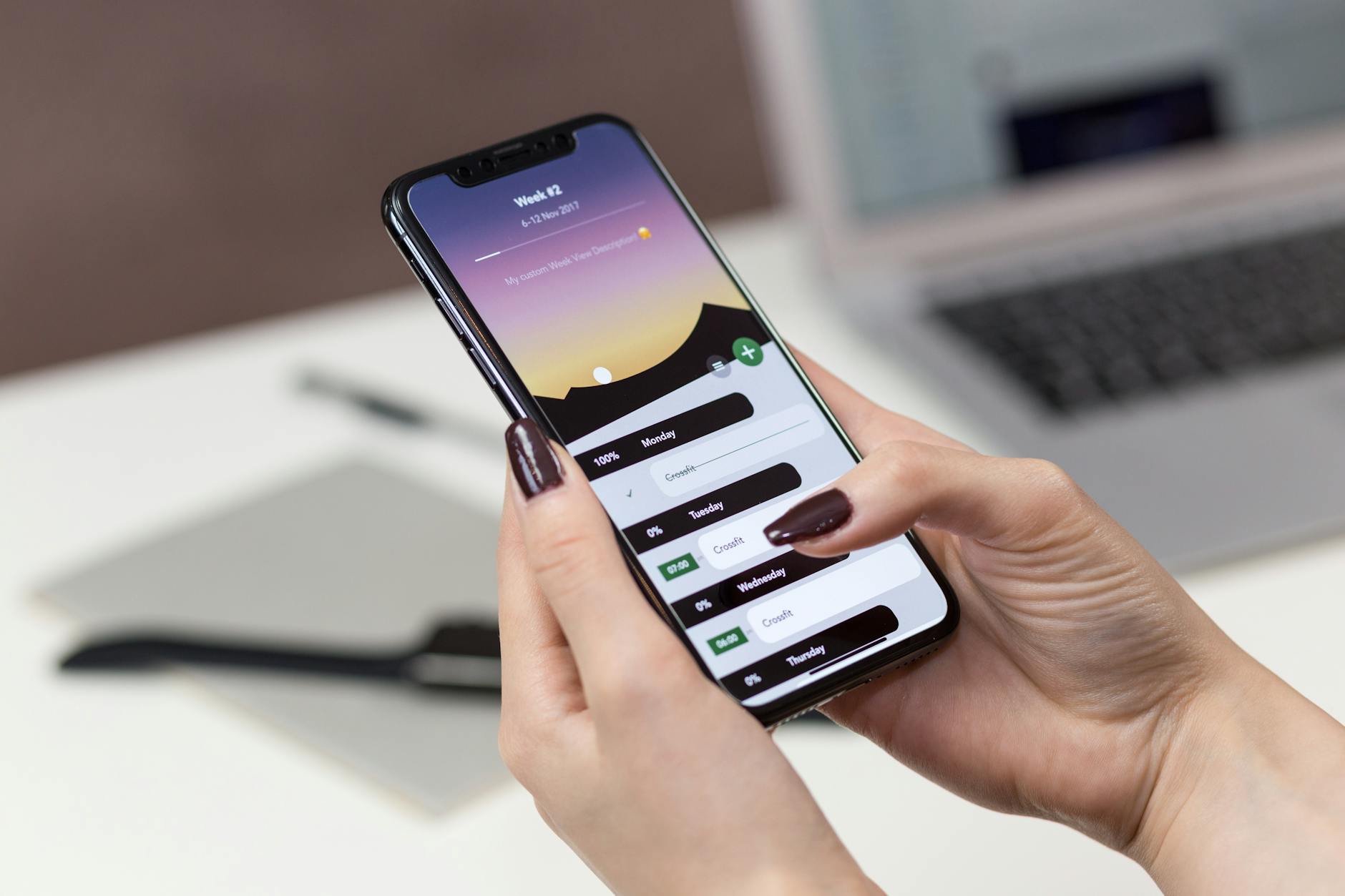
The main screen gives you options: print photos, print documents, print web pages, and scan. Tap what you need.
For documents, you can pull files from your phone storage, cloud drives, or email attachments. PDF, Word, Excel, and PowerPoint all work. The app handles the formatting so you do not need to fiddle with settings unless you want to.
For photos, you pick from your camera roll. The app lets you adjust paper size, print quality, and layout before sending the job. Want borderless prints? It supports that on compatible paper.
One tip that saves ink and time: use the draft quality setting for anything that does not need to look perfect. Internal documents, reference sheets, grocery lists. Save the high quality mode for things that matter.
Scanning With Epson iPrint
This is the feature people sleep on. The app Epson iPrint turns your printer's scanner into a wireless scanner. Put your document on the glass, tap scan in the app, and the scanned file lands on your phone.
You can save scans as PDF or JPEG. You can adjust resolution. You can even scan multiple pages into a single PDF. That last one is huge for contracts, receipts, and multi-page forms.
If you deal with a lot of paper documents, consider pairing this with a dedicated book scanner app workflow. Digitize everything. Keep nothing in paper form unless you legally have to.
Remote Printing With Epson Connect
Here is something most users miss entirely. Epson iPrint supports remote printing through Epson Connect. That means you can print to your home printer from anywhere with an internet connection. The office. A coffee shop. Another country.
Set it up by registering your printer with Epson Connect through the printer's control panel. You get an email address for your printer. Yes, your printer gets its own email address. Send documents to that address and they print automatically.
You can also enable remote print in the app itself. Register your Epson Connect account in the app settings and your printer shows up even when you are off your home network.
This is genuinely useful for people who work remotely or travel often. Print boarding passes, hotel confirmations, or work documents to your home printer before you even walk through the door.
Troubleshooting Common Issues
The app Epson iPrint works well most of the time, but Wi-Fi printing has its quirks. Here are the most common problems and their fixes.
Printer goes offline randomly. This is usually a router issue. Some routers drop idle devices from the network. Go into your router settings and increase the DHCP lease time, or assign a static IP to your printer.
Print jobs stuck in queue. Cancel all jobs in the app, power cycle the printer, and try again. If that fails, forget the printer in the app and re-add it.
Poor print quality from phone photos. Camera phone photos are usually high resolution enough. The issue is usually paper type. Make sure your paper type setting in the app matches the actual paper in the tray.
App crashes on launch. Update the app. If it is already updated, delete and reinstall. Your printer connection settings will need to be redone, but it takes thirty seconds.
Printing From Cloud Storage
The printing app connects directly to Google Drive, Dropbox, OneDrive, and Box. You do not need to download a file to your phone first. Open the cloud print option, sign in to your storage account, browse to the file, and print.
This is especially useful if you keep your important documents in the cloud and your phone storage is tight. No downloading, no cluttering your local files, no deleting after you print. Just point at the file and go.
For teams that share folders, this means anyone with the app and printer access can print shared documents without transferring files around. Simple.
Making It Part of Your Workflow
The real value of this printing setup is making it invisible. You should not have to think about it. Set up your printer once, and from that point on printing is a two-tap operation from anywhere on your phone.
Pair it with a solid productivity system and you remove one more friction point from your day. Need to print meeting notes? Two taps. Client contract? Two taps. Kid's homework worksheet? Two taps.
If you are serious about building efficient workflows, consider pairing your printing setup with a Pomodoro-based work system. Handle all your printing tasks in one batch during a break period instead of interrupting deep work every time you need a hard copy.
Wireless printing used to be unreliable. It is not anymore. The app has matured. The printers have matured. If you gave up on it years ago, give it another shot. It works now.
Stop walking to your computer just to hit print.
-- Dolce

Comments
Comments powered by Giscus. Sign in with GitHub to comment.