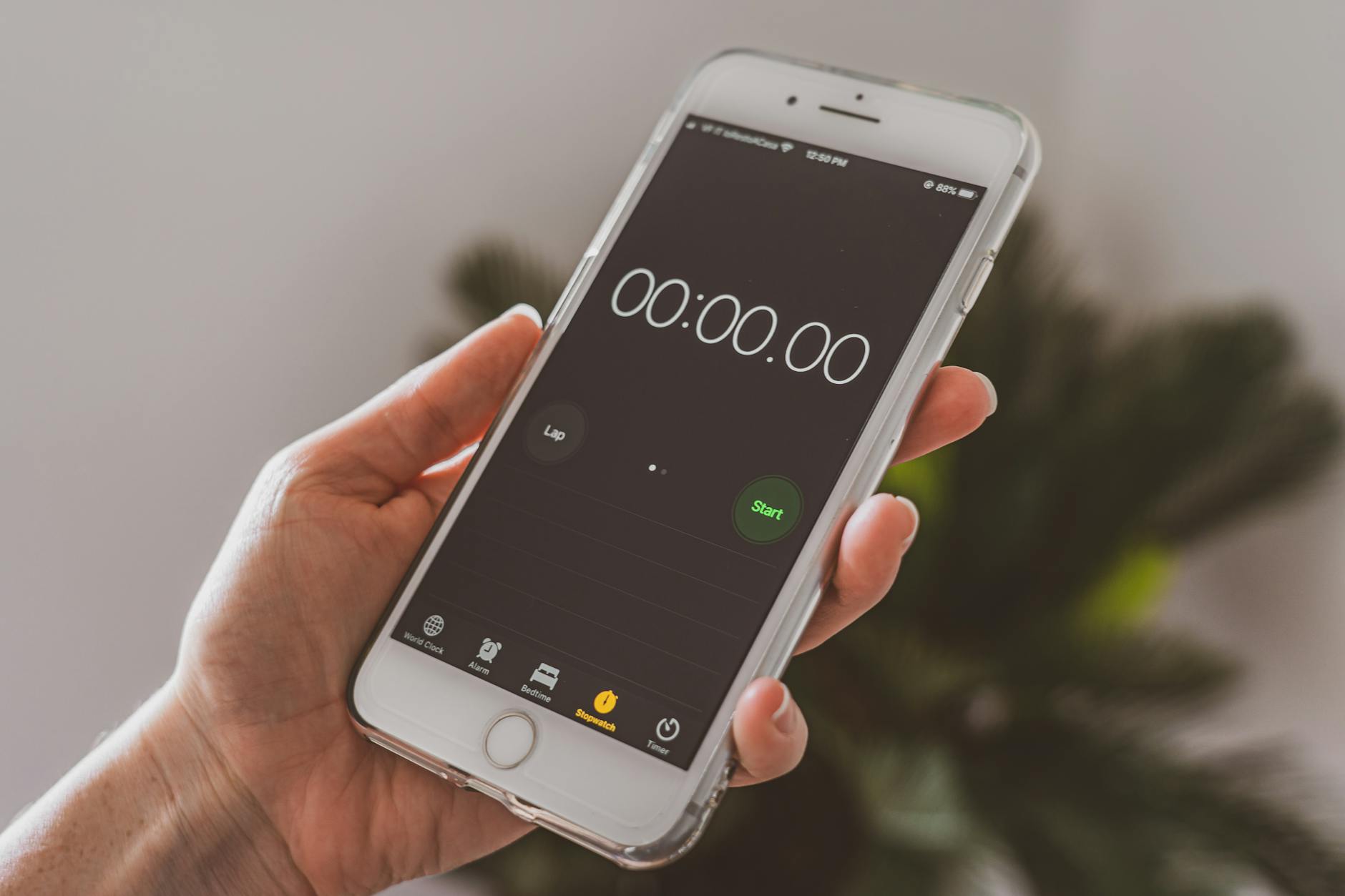
Opening an app to check your fasting timer is 2022 behavior.
In 2026, we use widgets. One glance at your home screen — you know exactly how long you’ve been fasting.
Here’s how to set it up.
Why Use a Fasting Widget?
The average person checks their phone 96 times a day.
If you’re fasting, you probably want to check your timer 10+ of those times. Opening an app each time? Tedious.
A widget shows:
- Hours fasted
- Time remaining
- Your current fasting zone (fat burning, autophagy, etc.)
- Visual progress ring
All without unlocking your phone or opening anything.
iPhone: Adding a Fasting Widget
Step 1: Get a Fasting App with Widgets
Not all fasting apps have widgets. Apps that do:
- FastTrack (multiple widget sizes)
- Zero (basic widget, premium only)
- Life Fasting (basic widget)
- Fastic (limited widget)
Step 2: Add the Widget
- Long-press on your home screen (hold until icons wiggle)
- Tap the + in the top-left corner
- Search for your fasting app
- Choose widget size:
- Small — shows timer only
- Medium — timer + zone
- Large — timer + zone + progress ring
- Tap “Add Widget”
- Position it where you want
- Tap “Done”
Step 3: Configure (If Available)
Long-press the widget → “Edit Widget” to customize what it shows.
Android: Adding a Fasting Widget
Step 1: Get a Compatible App
Most fasting apps support Android widgets:
- FastTrack
- Zero
- Fastic
- Life Fasting
Step 2: Add the Widget
- Long-press on empty home screen space
- Tap “Widgets”
- Find your fasting app
- Hold and drag the widget to your home screen
- Resize if needed
Best Widget Sizes
Small widget — Good if you just want the time. Minimal info, minimal space.
Medium widget — The sweet spot. Shows timer + current zone + progress.
Large widget — Maximum info. Timer, zone, percentage, streak. Takes up significant space.
My recommendation: Medium. You see what matters without sacrificing half your home screen.
What Makes a Good Fasting Widget?
Essential:
- Live updates — Shows current time, not last time you opened the app
- Fasting zone — Tells you if you’re in fat burning, ketosis, or autophagy
- Progress visual — Ring or bar showing how far along you are
Nice to have:
- Start/stop button on widget
- Streak counter
- Eating window countdown
Red flags:
- Widget that requires opening the app to update
- Premium-only widget
- Widget that drains battery
Lock Screen Widget (iOS 16+)
iPhone users can add fasting widgets to the lock screen:
- Long-press on lock screen
- Tap “Customize”
- Select the lock screen
- Tap the widget area below the time
- Add your fasting app widget
- Done
Now you see your fast without even unlocking your phone.
Fasting Widget vs. Notification
Some apps use notifications instead of widgets to show progress.
Widget pros:
- Always visible
- No notification center clutter
- Updates in real-time
- Looks cleaner
Notification pros:
- Works on older devices
- No home screen setup
- Can include action buttons
Verdict: Widget is better if your phone supports it.
Troubleshooting
Widget not updating?
- Make sure the app is running in the background
- Check app permissions (Background App Refresh on iPhone)
- Remove and re-add the widget
- Restart your phone
Widget showing wrong time?
The app might have lost track of your fast. Open the app to re-sync.
Widget not available?
Update the app. Widget support is often added in newer versions.
My Widget Setup
I keep a medium FastTrack widget in the top-left of my home screen.
At a glance I see:
- “14h 32m” (time fasted)
- “Fat Burning 🔥” (current zone)
- Progress ring (87% complete)
When my eating window opens, the widget changes to show time remaining in my eating window.
No opening apps. No checking. Just a glance.
FAQ
Do fasting widgets drain battery? Minimal. They update every few minutes, not constantly.
Can I start/stop a fast from the widget? Some widgets have buttons for this. FastTrack does.
Why isn’t my widget showing on iPhone? Make sure you added it correctly (long-press → +). Check that the app supports widgets.
Is there a fasting widget for Apple Watch? Yes. Most fasting apps have Watch complications that work similarly.
Related reads:
- Best Free Fasting Timer Apps — app comparison
- 16:8 Fasting Schedule Guide — how to fast
- Intermittent Fasting App vs Timer — do you need an app?
Sources
- National Institute on Aging — Research on Intermittent Fasting
- USDA FoodData Central
- Harvard T.H. Chan — The Nutrition Source: Protein
This article is general information, not medical advice. Talk to a qualified professional about anything affecting your health.
— Dolce
Comments
Comments powered by Giscus. Sign in with GitHub to comment.